Model Repository

From model catalogue to working portfolio

Manage the models your organization needs

Browse the models available in the IntraLLM Repository and add selected models to your workspace. Set their instructions, connect documents and tools, and choose which ones appear in Chat. Compatible models can also be used as the starting point for GPU training.


Why IntraLLM

Keep selection, configuration and training connected

When model discovery, setup and training happen in separate systems, platform teams have to track the same model across multiple tools.

IntraLLM connects these stages inside the workspace while keeping the wider catalogue separate from the models your organization has chosen to use.

Control what enters the workspace

Review the models available through your deployment and add only those that meet your requirements.

Keep each model’s setup together

Manage instructions, generation settings, documents, tools and visibility as part of the model’s local configuration.

Train when the use case requires

Take a compatible model into GPU training when instructions and connected knowledge are not enough.


HOW IT WORKS

One model's journey through IntraLLM

The journey begins in Model Hub and continues through Local Models. A configured model can move directly into use, while a compatible model can branch into Training before returning to the managed collection.
01

Find and add a model

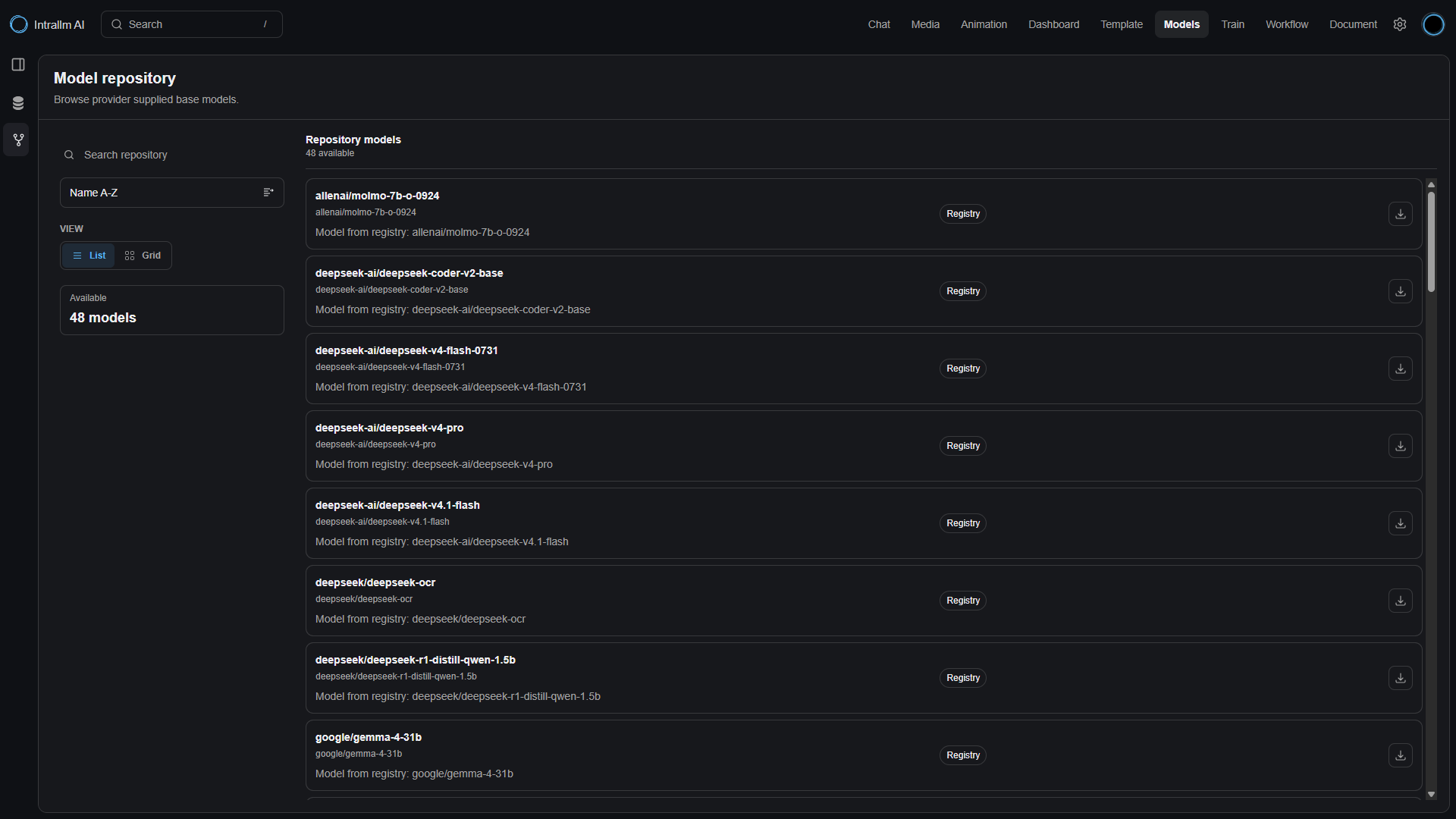
Choose a suitable foundation from Model Hub.

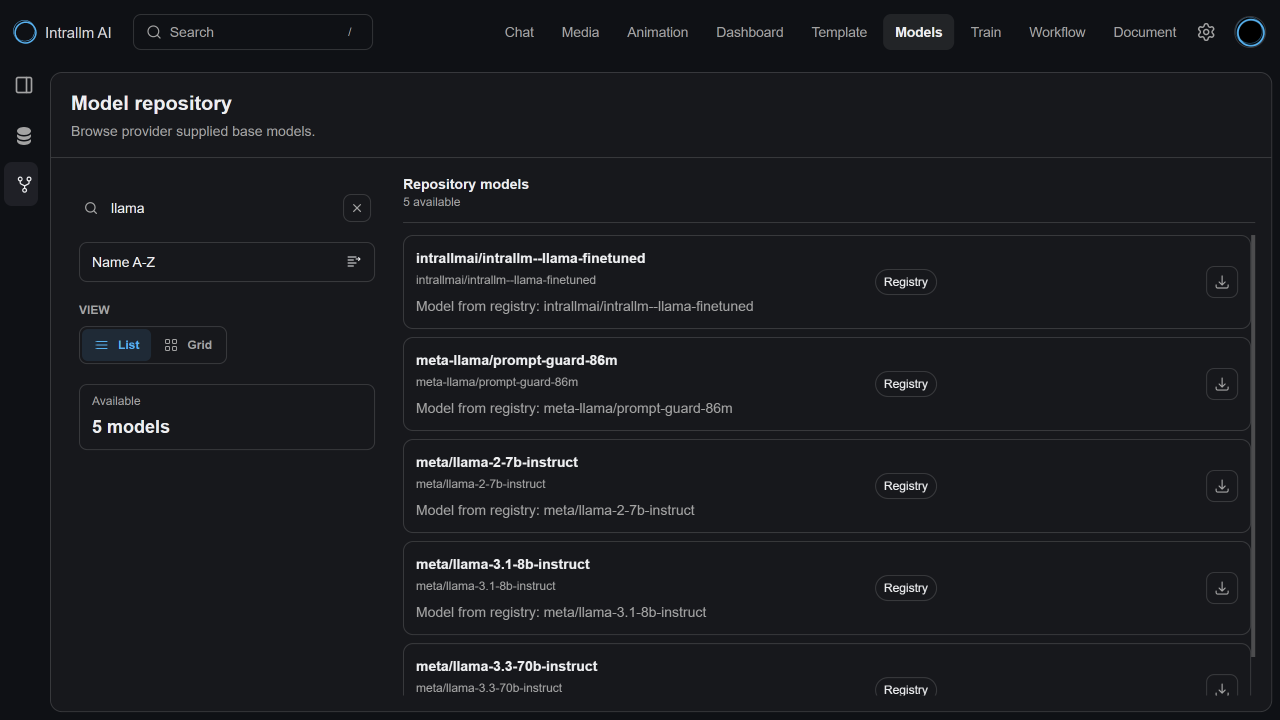
Search the available catalogue by model or provider, check the model ID and source, and add the model your organization needs.

Sorting and list or grid views help you work through a larger catalogue without adding every available model to the workspace.

Model availability depends on the providers and registries connected to your deployment.

02

Configure it for the task

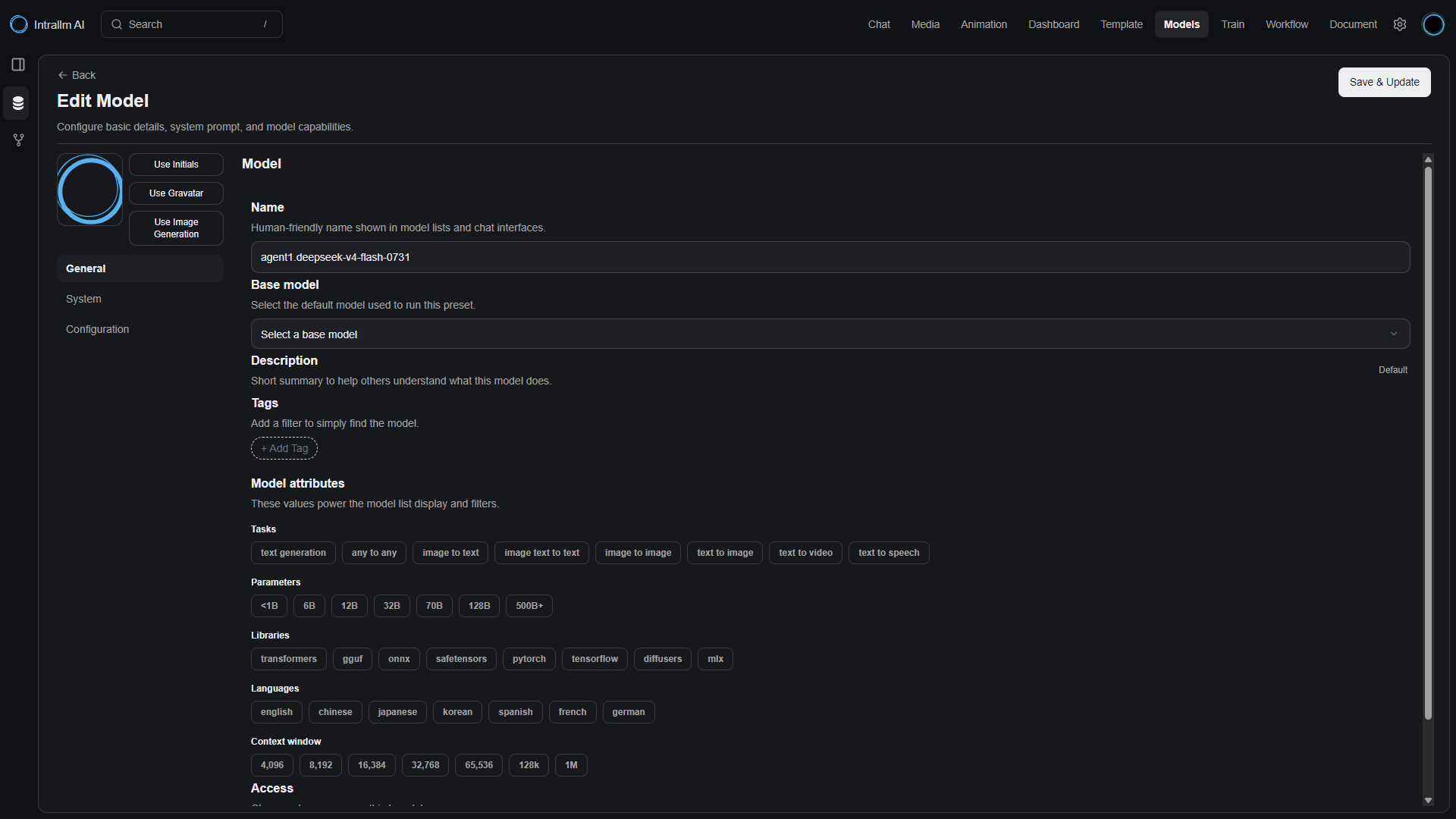
Prepare the model in Local Models.

Set its name, avatar and tags, then define the system instructions, prompt suggestions and supported generation settings.

Connect documents through retrieval-augmented generation when the model needs organization-specific information. Enable the tools, filters, actions, vision and other supported capabilities required for the task.

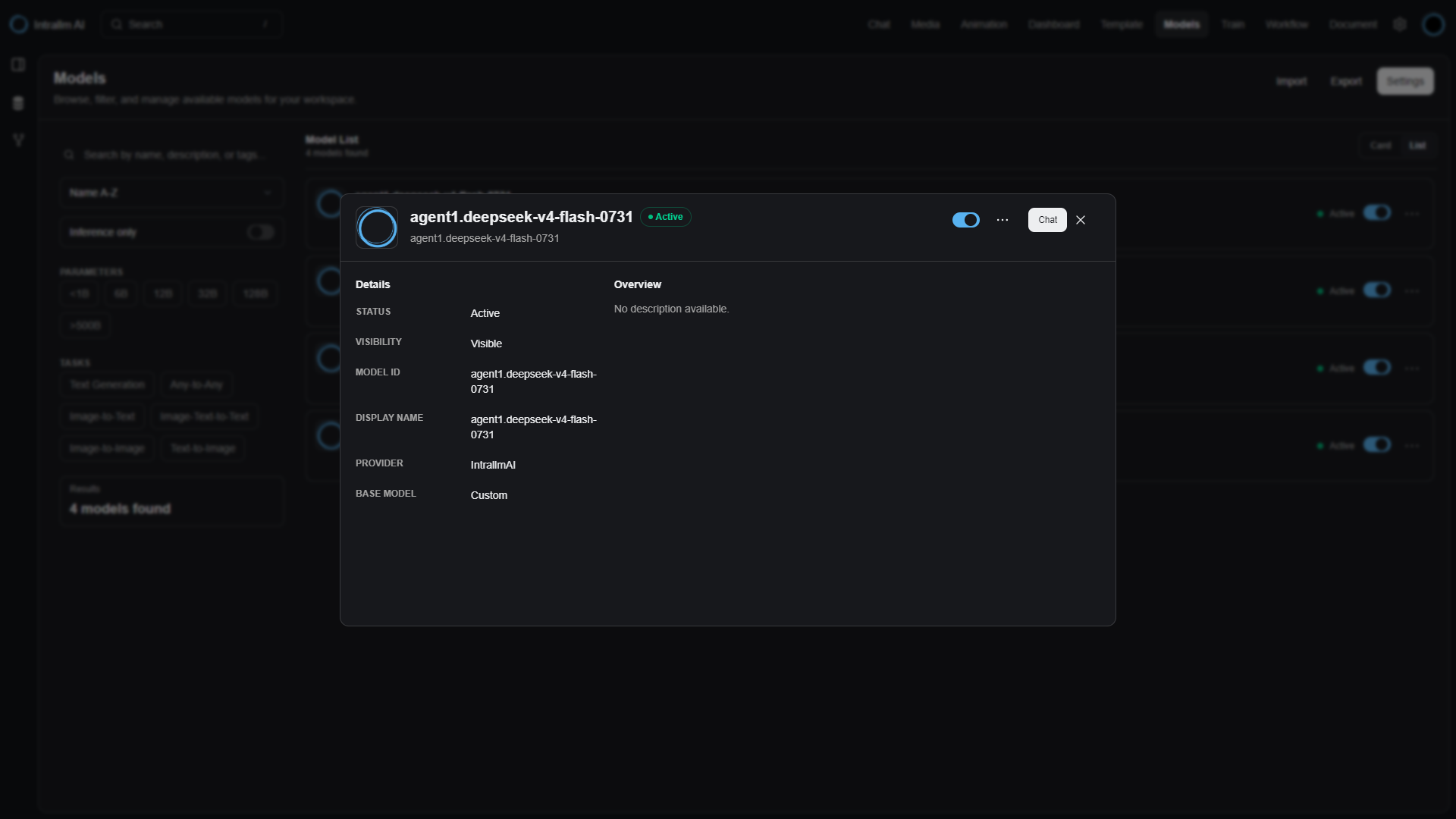
Keep the model hidden while it is being prepared, then make it available when the configuration is ready.

03

Use it directly or fine-tune it

Choose how much adaptation the model needs.

Configuration changes how the model is instructed, what information it can retrieve and which capabilities it can use. It does not change the underlying model weights.

If configuration meets the requirement, the model can move directly towards use. If the required behavior needs to be learned from prepared data, continue into Model Training.

Select a compatible model and dataset, configure the run and use your available GPU resources for training. Monitor the run from the IntraLLM workspace and review the resulting model before making it available.

Explore Model Training →

04

Manage and make it available

Keep configured and trained models under control.

Update a model when its instructions, parameters, knowledge or capabilities change. Clone an existing configuration for a related use case, or use import and export to move supported model definitions.

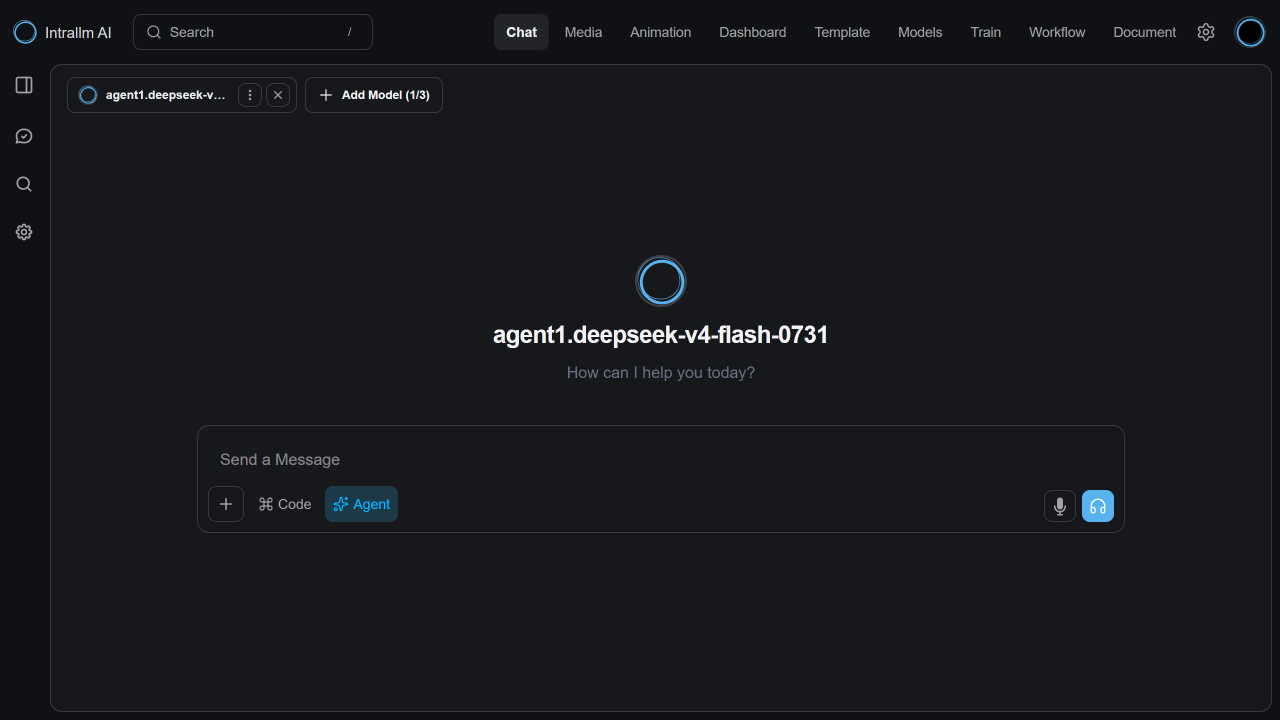
Visibility controls keep unfinished or retired models out of active use. When a model is ready, make it available through AI Agents for use with agents, templates and model comparison.

Explore AI Agent →


BUILT AROUND YOUR ENVIRONMENT

Run the model lifecycle on infrastructure you control

Connect IntraLLM to the providers and registries configured for your deployment, then use your available GPU resources for compatible training runs. Your platform team decides which models enter the workspace and when users can access them.

Connected model sources
Build the catalogue around the model providers and registries supported by your deployment.
Available GPU resources
Use compatible models and the GPU infrastructure available to your organization for training runs.
Controlled availability
Prepare models privately within the workspace and decide when they are ready to appear in user-facing experiences.